
Background
Communication
The FortiClient application is meant to be connected and managed by an “Endpoint Management Server” (EMS). Aside from the Electron UI, there are multiple components to the Forticlient application, with each one having its own responsibility. One of them is the Fortinet/FortiClient/bin/epctrl file which is responsible for the network communication part. Communication between the server and the client is handled via a custom protocol. To simplify matters, the flow goes like this:
- First, a Probe request (
X-FCCK-PROBE) is sent, and then the server replies with basic EMS information which verifies that the server is an actual EMS. - The second request is a registration one containing information on the client (
X-FCCK-REGISTER). - If the registration is successful, the connection is maintained via keep-alive messages every
Xamount of time, which is defined by the server (X-FCCK-KA).
In this line-based protocol, each header is represented via a new line. The body contains the type of the message followed by the fields/values which are separated by the | char, for example, a “probe” reply will look as such:FCPROBERPLY: Key1|Value1|Key2|Value2|\r\n
Authentication
The FortiClient Electron app handles URLs of the scheme fabricagent://. By using the fabricagent://ems?inviteCode=... URL, FortiClient will connect to an on-premise or Fortinet-hosted server depending on if the inviteCode parameter starts with a _ character. The code is a base64-encoding of the following format - <version>:<fqdn>:<port?>:<vdom>:<invitation_code> (fqdn == the IP of the EMS).
Using it, clients can connect to EMS conveniently by clicking on a link (Forticlient will try to connect to the new EMS even if the client is already connected and/or requires a password to disconnect). During connection, if needed, an authentication process is initialized with one of the following three types: SAML, LDAP, or Local.
In a
SAMLauthentication flow, the server provides a URI which will be opened on the client machine in the browser. The link goes through the web SAML authentication, and finally opens anonboardingURL containing the SAML token:
fabricagent://ems/onboarding?username=...&auth_token=...In a
LocalorLDAPflow, Forticlient will create a basic login window as such: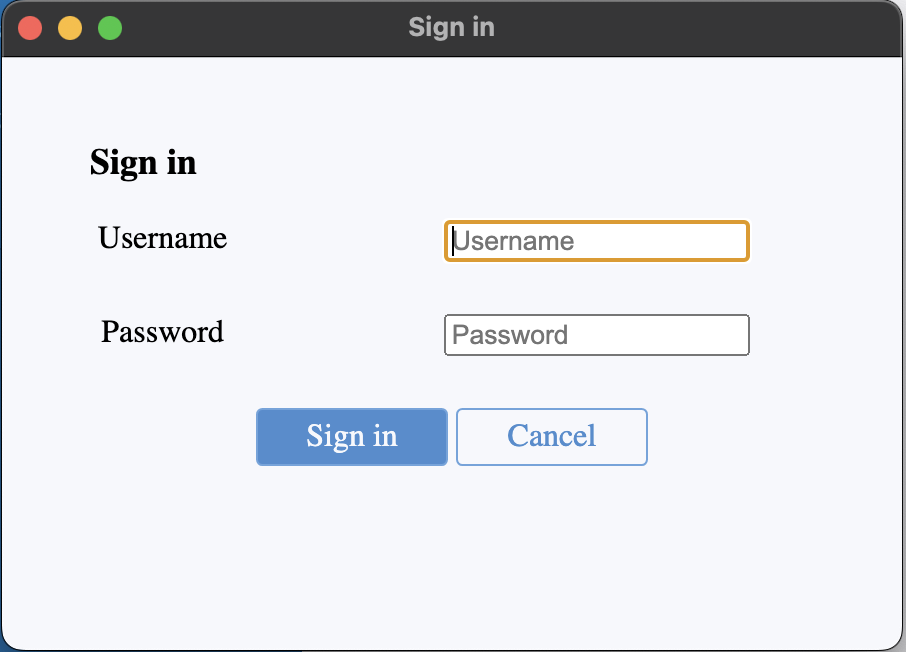
Technical Details
When the client receives an “authenticate” reply from the EMS, it will go to the promptUserAuth function (in the compliance.js file). This will first check if a SAML URL is provided. If so, it will proceed with the flow described above. If not, it will create the basic login window with the auth_ldap and auth_user parameters.
1 | promptUserAuth() { |
The auth_ldap and auth_user parameters are taken from the shared memory file stored at /private/var/run/fctc.s which is set when parsing the register reply (FCREGRPLY) by the epctrl binary.
At epctrl::message::Register::ProcessAuth in case the AUTHTYPE field exists in the response, the parameters will be reset including auth_user (the truncated part of the image, lines 34-96), and it will load AUTHLDAP and AUTHSAML key/value from the response to auth_ldap and auth_saml correspondingly.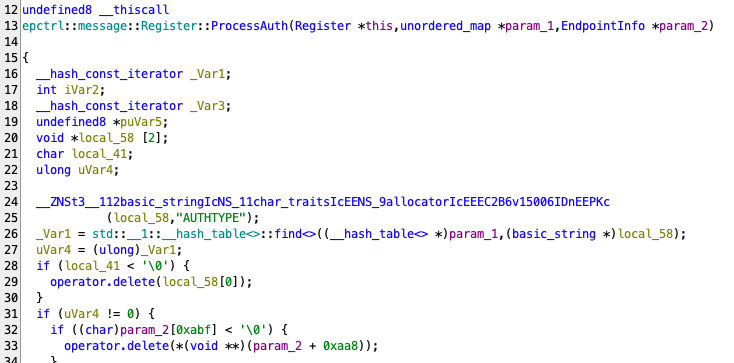
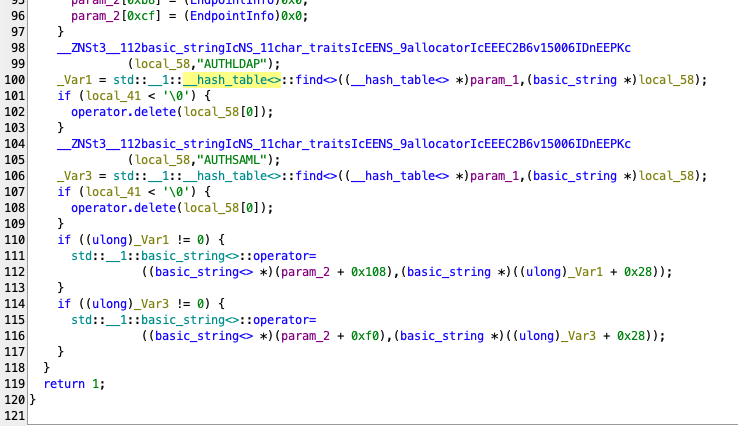
Eventually, on the Electron side, the window is created in the BasicAuthWindow class with nodeIntegration set to true.
We noticed that the auth_user is formatted into a Javascript snippet (that is meant to prefill the user name) without any sanitization, which leads to Code Execution in case of a malicious auth_user value.
1 | createWindow(title, auth_user) { |
Exploitation
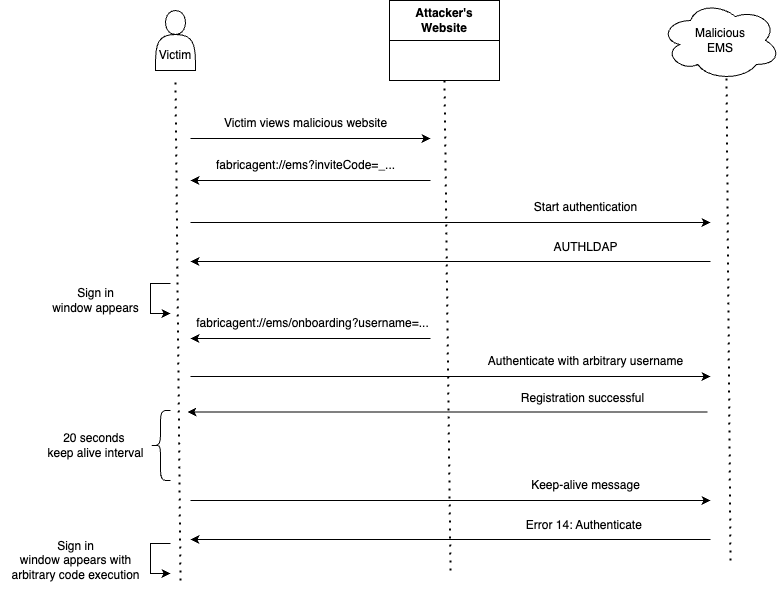
In order for an attacker to be able to set an arbitrary auth_user parameter and show the basic login window, we came up with the following attack flow:
- A victim visits a malicious website which first opens a link to initialize a normal registration to a malicious EMS.
- The EMS responds with
AUTHLDAP, which will prompt the user to sign in and remove any previousAUTHSAMLvalue (This is an important step because it will “save” the login method as LDAP since in step 5 we don’t include any “AUTHTYPE“ key) - After the EMS responds with an authentication request, a second “onboarding” link is opened automatically via the website. This link sets a malicious username and authenticates again in the background.
- The EMS responds with registration successfully to the onboarding request.
- The user either enters credentials or cancels the sign-in window.
- In the next keep-alive message, the server will send an error message 14 (meant to authenticate the user again) but this time without
AUTHTYPE. This will not overwrite any parameter (auth_ldap,auth_saml,auth_user), and will show the previous sign-in window, but this time with the injected Javascript code.
We are not familiar with other ways to set arbitrary usernames and simultaneously trigger the vulnerable basic login window.
Malicious EMS code (simple cert and key are needed for SSL):
1 | import base64 |
Malicious website code, note that the second “onboarding” link is executed here with a simple timer. In a more refined scenario an attacker can time it by waiting in the EMS for a connection, and only then open on the web the second link:
1 | let maliciousEMSIp = `127.0.0.1:9999`; |
Affected Product
FortiClientMac 7.2.1 through 7.2.8 and FortiClientMac 7.4.0 through 7.4.3
Impact
A victim who is manipulated to click on a link might execute arbitrary code on their machine. By default, modern browsers also prompt users before opening an external application via a custom scheme, so it does require an additional click on the invite link as well as the onboarding one. Combined with “Caught in the FortiNet” local privilage escelation vulnerability, an attacker can elevate their privileges to root on macOS.
Remediation
Update FortiClientMac to version 7.2.9, 7.4.4 or above.
Credit
This issue was discovered and reported by Yaniv Nizry.